
OBS Studio. You’ve heard the hype. Maybe you’ve even downloaded the damn thing. Now what?
Look, OBS Studio. It’s free. It’s powerful. It’s also a goddamn labyrinth if you’re not careful. I’ve been wrestling with this beast since 2016, back when dual-core CPUs were considered “high-end.” Honestly, most guides treat you like a delicate flower. I don’t. You’re here to learn how to use OBS Studio, not knit a damn scarf.
The thing is, this isn’t your grandma’s video editor. This is raw power. You want professional-looking streams? Tutorials that don’t look like they were recorded on a potato? You gotta get your hands dirty. Forget the fluff. Let’s get to the meat.

The Absolute Bare Bones: What You Need
Before we even think about fancy transitions or green screens, let’s talk essentials. Your PC. Is it a potato? Mine wasn’t always a super-rig. Back in ’18, I was ruing a GTX 1070 and praying it wouldn’t crash during a 3-hour stream. It often did.
Hardware Matters. A decent CPU (think Intel i5 8th gen or newer, or Ryzen 5 2600+) and a GPU that isn’t actively collecting dust are non-negotiable. You’re encoding video, pal. That takes juice.
Internet Speed. Wired coection. Always. Nobody wants a buffer dance during their big moment. Upload speed is king for streaming. Aim for at least 5 Mbps upload, but 10 Mbps+ makes life easier. Seriously, ditch the Wi-Fi.
First Steps: Don’t Screw It Up
You installed it. Great. Now, the infamous Auto-Configuration Wizard. I usually skip it. Why? It’s often wrong. It guesses. I don’t like guessing when my stream quality is on the line. But for you? Go ahead. Run it. See what it does. It might save you ten minutes. Or it might set your bitrate to something suicidal. To be fair, it’s gotten better.
Run the Wizard (If You Must)
Fire up OBS. You’ll see it. Big button. “Auto-Configuration Wizard.” Click it. Choose “Optimize for streaming, recording is secondary.” Or if you’re a screencast goblin like me, “Optimize just for recording.” Then pick your base resolution and FPS. 1080p, 60fps is the standard. If your rig wheezes, drop to 720p. It’s better than a slideshow.

Manual Tweaks: The Real Deal
Forget the wizard. Let’s talk settings. Go to Settings > Output. This is where the magic (and the pain) happens.
Output Mode: Advanced
Switch to Advanced. Don’t be scared. You can handle this.

Streaming Tab
Encoder: NVENC (Nvidia) or AMF (AMD) if you have it. They use your GPU. Less CPU load. Use x264 if you’re rocking a CPU beast and have no GPU encoder. Quality settings? Medium or Fast for NVENC/AMF. Slow for x264 if your CPU can take it. Bitrate? This is crucial. For 1080p 60fps, aim for 6000 Kbps. Twitch has specific recommendations. YouTube is more forgiving. Check their damn docs.
Rescale Output: Only if you’re streaming at a lower resolution than your base canvas. Like streaming 720p from a 1080p canvas. Keeps things sharp.
Recording Tab
Type: Standard. Unless you’re doing some fancy multi-track nonsense.
Recording Format: MKV. Why? It’s crash-proof. If OBS or your PC shits the bed mid-recording, the file isn’t corrupted. You can remux it to MP4 later inside OBS. Safer than MP4, which dies if the recording stops abruptly.
Encoder: NVENC/AMF again. Or x264. For recording, you can crank the quality. Use `veryfast` for x264, or `Quality` for NVENC/AMF. Bitrate? For 1080p 60fps lossless-ish recording, you’re looking at 50,000 Kbps or higher. Yes, it’s a lot. Storage space? Yeah, it eats it. But you get pristine footage.
Video Settings
Go to Settings > Video. This is your canvas. Your “stage.” Base (Canvas) Resolution should match your monitor. Usually 1920×1080. Output (Scaled) Resolution is what gets streamed/recorded. If your PC struggles, this is where you drop it. 720p (1280×720) is common. Common FPS Values: 30 or 60. Choose based on your content and rig. 60fps looks smoother for games. 30fps is fine for talking heads or tutorials.
Audio Settings
Settings > Audio. Your microphone is key. Mic/Auxiliary Audio: Select your actual mic. Don’t pick the webcam mic unless you have no choice. The default “Mic 1” is usually fine. Sample Rate: 44.1 kHz is standard. 48 kHz is also fine. Stick to one. Desktop Audio: This is your PC sound. Games, music, browser sounds. Select your default output device. Or the specific one if you’re fancy.
Scenes and Sources: The Building Blocks
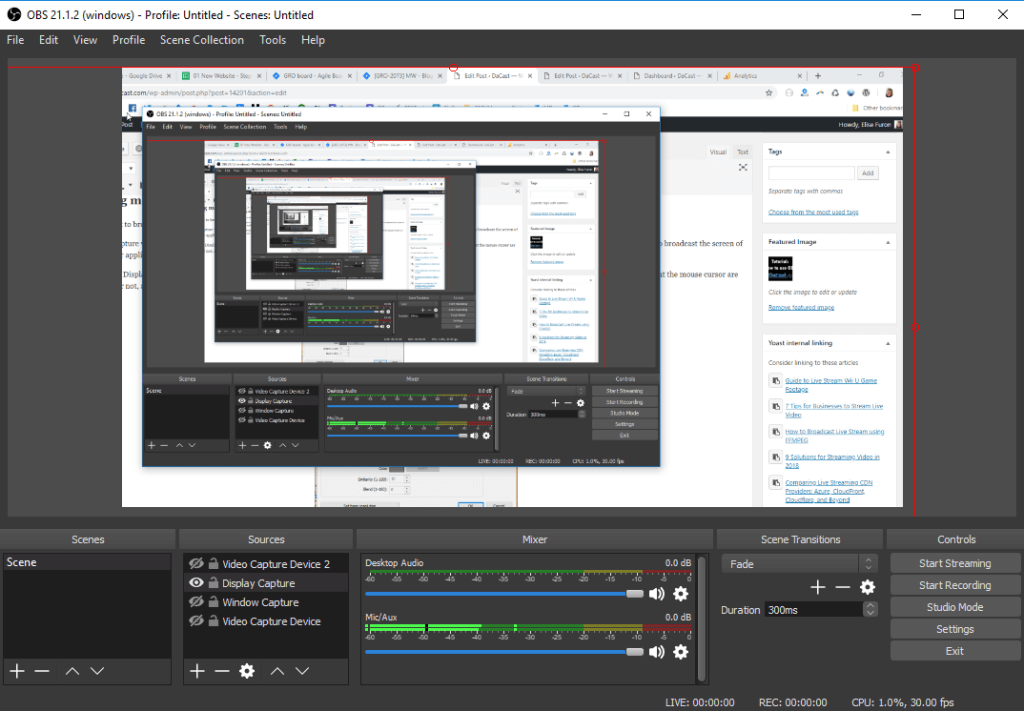
This is where OBS shines. And where people get lost. Think of Scenes as different layouts. A scene for your webcam, a scene for gameplay, a scene with your face and gameplay. You switch between them. Sources are the actual elements within a scene: your webcam feed, your game capture, an image, text.
Creating Your First Scene
Bottom left. The Scenes dock. Click the + button. Name it something logical. “Starting Soon.” Then click + in the Sources dock below it. Add your webcam. Select Video Capture Device. Choose your camera. Boom. There you are.
Adding Game Capture
Make a new scene. Name it “Gameplay.” Click + in Sources. Add Game Capture. A window pops up. Set Mode to “Capture specific window.” Then select your game from the dropdown. If it doesn’t show up? Run the game first. Sometimes OBS needs a nudge. If that fails, try Window Capture. Less efficient, but it works.
Resize and position your game capture. Then add your webcam. Click + > Video Capture Device > select your webcam. Drag the webcam feed on top of the game capture. Resize it. Put it in the corner. Done. You’re now a streamer. Sort of.
Sources: The Nitty-Gritty
There are dozens. Don’t get overwhelmed. Focus on the main ones:
- Display Capture: Captures your entire monitor. Use this sparingly. It captures everything. Notifications, your cat walking across the keyboard. Aoying. Good for desktop tutorials.
- Window Capture: Captures a specific application window. More controlled than Display Capture.
- Video Capture Device: Webcams, capture cards.
- Image: Static pictures. Logos, backgrounds.
- Text (GDI+): On-screen text. Alerts, usernames. You can even link it to other sources for dynamic text.
- Media Source: Video files. Intros, outros, stingers.
- Audio Input Capture: If your mic isn’t showing up automatically.
- Audio Output Capture: If your desktop audio isn’t working.
Audio: The Unsung Hero (Or Villain)
People forgive bad video. They hate bad audio. I remember one stream in ’17. My mic levels were jacked. People were complaining for 30 minutes before I noticed. Embarrassing. Get this right.
The Audio Mixer Dock
Look at the bottom middle. The Audio Mixer. You’ll see sliders for your Mic, Desktop Audio, and any other audio sources you added. Your mic should be in the yellow. Red is clipping. Distortion. Bad. Aim for -10dB to -20dB peak.
Filters: Your Secret Weapon
Right-click on your mic source in the Sources list. Select Filters. This is where the magic happens.
| Filter Name | What It Does | Why Use It |
|---|---|---|
| Noise Gate | Cuts out audio below a certain threshold. | Stops background noise (keyboard clicks, AC hum) when you’re not talking. Essential. |
| Noise Suppression | Reduces constant background noise. | Filters out general room noise. Levels vary. `Speex` is lighter, `RNNoise` is better quality but heavier. |
| Compressor | Evens out volume levels. Loud bits get quieter, quiet bits get louder. | Makes your voice consistent. Stops sudden loud noises from blasting viewers. Adjust the Ratio carefully. |
| Gain | Increases audio volume. | Use sparingly! Better to get a good signal from your mic physically than crank this to 11. Fixes low mic volume. |
Tip: Apply these after setting your base levels in the mixer. Test. Adjust. Re-test. Play some background music. Talk over it. Record a bit. Listen back. Get it right.
Scenes: More Than Just Layouts
Scenes aren’t just for switching views. They’re for managing complexity. Think about your workflow.
Scene Transitions
Below the Scenes dock. Scene Transitions. Default is usually “Cut.” Boring. Try “Fade.” Or “Stinger.” Stingers are animated transitions. They require a video file. Takes practice. But looks slick. You can set the duration too. A quick 0.5-second fade is usually enough.
Hotkeys: Your Best Friend
Settings > Hotkeys. This is critical for live work. Assign keys to switch scenes. Start/stop streaming. Mute your mic. Anything you do often. I have keys for “Gameplay,” “Be Right Back,” and “Starting Soon.” Muting my mic is F1. Never forget F1.
Hotkeys mean you don’t have to click around in OBS while you’re live. Keeps your hands on the keyboard or controller. Speed matters.
Advanced Techniques (If You’re Not Scared Yet)
You’ve got the basics down. Now, let’s sprinkle some fairy dust. Or, you know, actual useful stuff.
Stream Overlays and Alerts
These make your stream look professional. Stuff like follower alerts, sub goals, chat boxes. You usually get these from services like Streamlabs, StreamElements, or Nerd or Die. They provide a URL.
In OBS, add a Browser Source. Paste the URL from your alert service. Set the width and height to your stream resolution (1920×1080). This pulls the overlay directly into OBS. It’s like magic. Just don’t overload it. Too many alerts kill the vibe.
Virtual Camera
OBS has a built-in Virtual Camera. Start it up. Now, any application that lets you choose a webcam (Zoom, Discord, Meet) will see OBS as a camera source. This means you can use all your fancy OBS scenes, overlays, and filters in your video calls. My “work calls” scene has my logo and a clean background. Looks way better than my messy office.
Window vs. Game Capture Again
Seriously. If you play modern games, use Game Capture. It’s optimized. Less overhead. Window Capture is a fallback. If Game Capture fails (anti-cheat software sometimes kicks up a fuss), Window Capture is your safety net. But expect a slight performance hit. I learned this the hard way trying to stream Valorant back in the day. Game Capture was a must.
Recording with Higher Quality
Remember that MKV format and high bitrate in the recording settings? Do that. Then, once the recording is done, go to File > Remux Recordings. Select your MKV file, choose an output MP4 file, and click Remux. You get the safety of MKV with the compatibility of MP4. It’s fast. No re-encoding needed. This is clutch for editors.
Common Pitfalls & How to Avoid Them
Audio Echo: You’re hearing your own mic in your desktop audio. Solution? Turn off desktop audio monitoring for your mic, or ensure your mic isn’t selected as the output device for anything. Check your filters too. That Compressor might be boosting background noise.
Lag/Stuttering: Your PC can’t keep up. Check your encoder settings. Lower bitrate. Lower resolution. Lower FPS. Use NVENC/AMF if possible. Close background apps. Seriously, Chrome eats RAM like candy.
Dropped Frames (Streaming): Your internet coection is the likely culprit. Wired coection? Check your upload speed. Lower your bitrate. If you’re consistently dropping frames due to network issues, no amount of OBS tweaking will fix it. 2015 me learned this the hard way on a crappy DSL line.
Black Screen in Game Capture: Usually an admin rights issue or anti-cheat conflict. Try ruing OBS as administrator. Or switch to Window Capture. Sometimes, a simple OBS restart or PC reboot fixes it. Don’t underestimate the power of a good old reboot.
Frequently Asked Questions
Is OBS Studio really free?
Yes. OBS Studio is completely free and open-source software. No hidden fees, no subscriptions. You get powerful tools without paying a dime.
What’s the best encoder for streaming?
For most users with Nvidia GPUs, NVENC (H.264) is recommended. For AMD, it’s AMF (H.264). These offload encoding to your GPU, reducing CPU strain. If you have a very powerful CPU and no dedicated GPU encoder, x264 can work, but it uses significantly more CPU resources.
How do I capture multiple monitors?
Use Display Capture as a source. You can add multiple Display Capture sources, each set to a different monitor. You can then arrange these sources within a scene to show them side-by-side or individually.
My microphone sounds bad, what can I do?
Check your mic’s physical placement. Use OBS filters like Noise Suppression and Noise Gate. Ensure your mic isn’t clipping (hitting red in the audio mixer). Consider a pop filter and a shock mount. Investing in a better microphone is often the best solution.
Can I use OBS Studio on a Mac?
Yes, OBS Studio is available for Windows, macOS, and Linux. The interface and functionality are largely the same across all platforms.